Starting a new project in Azure DevOps
You already have Codee running and connected to your Azure DevOps organization, and now you want it to work on a different codebase: a new product, a new service, or a repository it has never touched. This tutorial covers everything you have to set up before Codee picks up its first work item there.
It takes three steps:
- Give Codee access to the Azure DevOps project, with the mapped work item types and
the
AIstates available in it. - Add the git repository to Codee, on the Repositories page in the Codee UI.
- Create work items and move them into an
AIstate.
1. Add Codee to the Azure DevOps project
Codee does not have a per-project setting. It polls every project in the organization that the connected account can read, so setting up a project comes down to two things:
-
Codee's account is a member. Add it under Project settings → Permissions as a Contributor, or invite it through Project settings → Teams. Contributor is enough: it can read work items, change their state, comment, and open pull requests. Membership is also what makes the project visible to the poll at all — a project Codee's account cannot read is a project Codee never sees.
-
The mapped types and the
AIstates exist. Codee polls the types that Settings → Tasks provider → Work items mapsstoryandtaskto, which areUser StoryandTaskby default, so the types are usually already in the project. TheAIstates are not: they come from an inherited process. If you set one up for an earlier project, there is nothing new to create — open Project settings → Overview → Process and point the new project at that same process. If this is your first project, follow Creating states for Codee once and reuse the result everywhere afterwards.Only a project on a different process template needs a closer look. Check under Which work items Codee polls that the types it uses are in the mapping, and add them to the row if they are not.
Nothing needs to be reconfigured in Codee itself. The app registration, the tokens and the MCP server are per-organization, and they already cover the new project.
2. Add the repository to Codee
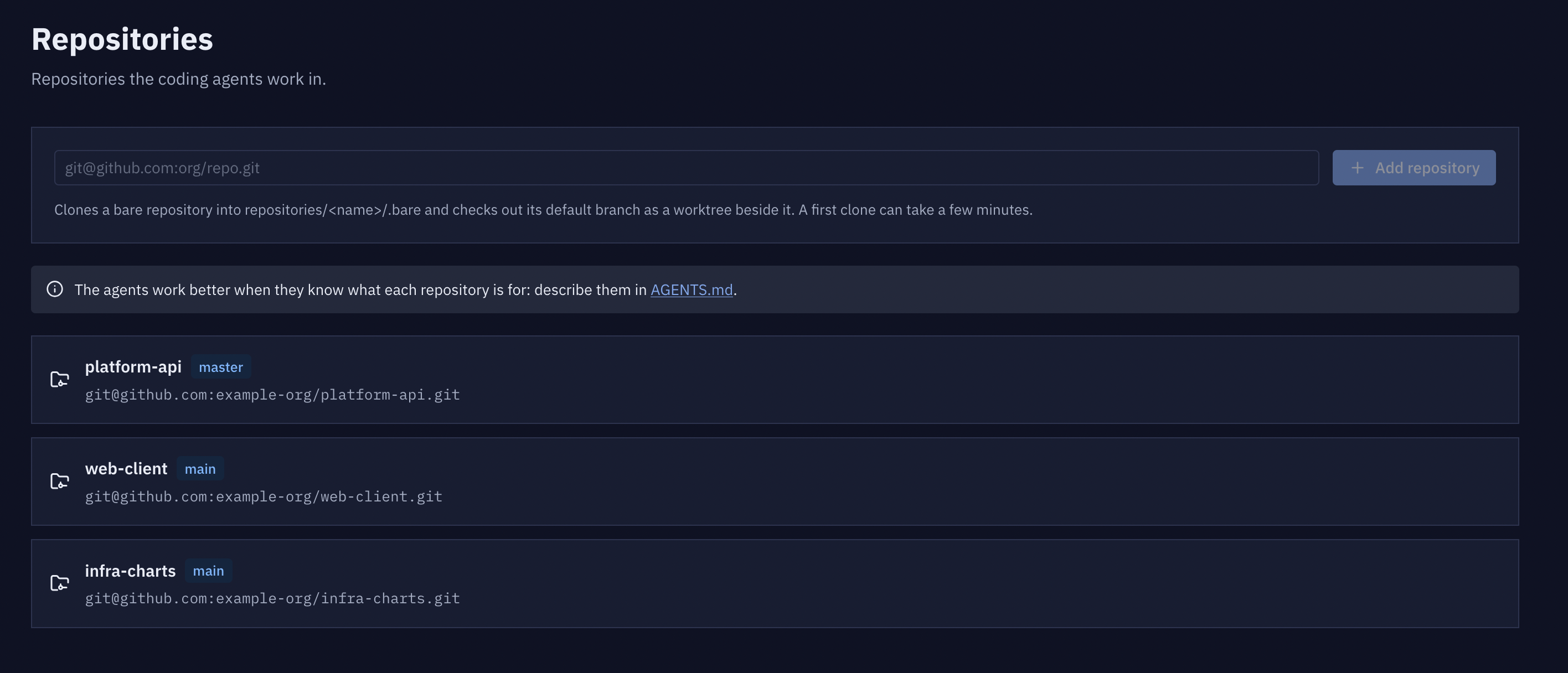
Codee works on clones it manages itself, under repositories/ in the Codee project
directory. Until a repository is added there, Codee has no way to work on it.
In the Codee UI, open Repositories, paste the clone URL and click Add repository.
Codee makes a bare clone in repositories/<name>/.bare. Each branch the agents work on
becomes its own worktree, so several tasks can run at once without stepping on each other.
Both URL forms work. HTTPS needs a PAT stored in the git credential helper on the worker machine, and rotated when it expires; SSH needs one key pair, set up once and never touched again. If you have no reason to prefer HTTPS, take the SSH URL.
What the repository needs
| Requirement | Why |
|---|---|
| Reachable from the machine the Codee worker runs on | The clone is a plain git clone, run as the worker's user: an SSH key on that machine, or a PAT in its git credential helper. |
| Push access | Codee pushes branches and opens pull requests. |
The repository does not have to live in Azure Repos. Azure Repos, GitHub, Bitbucket and GitLab all work, and one story can span repositories on different hosts, as long as the worker machine can pull and push each of them.
Tell the agents what the repository is
Add a brief description of each repository to the Codee project's AGENTS.md, so the
agents know which repository is which.
Keep the details out of this file. The stack, the build, test and run commands and the
project conventions belong in the repository's own AGENTS.md, CLAUDE.md or
.claude/skills, versioned with the code.
3. Create the work items
Create the work items in Azure DevOps as usual, with two constraints:
- Type: one the mapping selects. A story work item (
User Storyby default) or a task one (Task). Codee ignores every other work item type. - The work is in the description. Codee reads the description, the acceptance criteria, the attachments, the comments and the linked work items. Screenshots, error output, links to an existing implementation and a Definition of Done all belong there.
The assignee is not a constraint: the poll does not filter on one, so leave the work item with whoever owns it.
Story or task
Use a story when the work needs several steps, spans repositories, or is not yet concrete enough to implement. Codee plans it first and you approve the plan before any code is written.
Use a task when you already know what the change is and it fits in one pull request. It goes straight to implementation.
4. Move it to an AI state
The state is the trigger. Type says the work item is one Codee handles at all; the state says it is Codee's now and what to do with it, and Codee only acts on states its skills declare.
| Work item | Start it in | What Codee does |
|---|---|---|
| story | AI Decomposition needed | Reads the story and the code, asks any clarifying questions, creates child work items with acceptance criteria, and moves the story to AI Decomposition review for you to approve. |
| task | AI Ready for development | Implements the change on its own branch and opens a pull request, then moves the work item on to review. |
From here the work item follows the normal pipeline - development, code review, security
review, QA, then AI Ready for Human review where a person merges. That whole flow, state
by state, is in
Working on tasks in Azure DevOps.
If nothing gets picked up, work through When nothing gets picked up.